


Fingerprint & Security · Practical guide
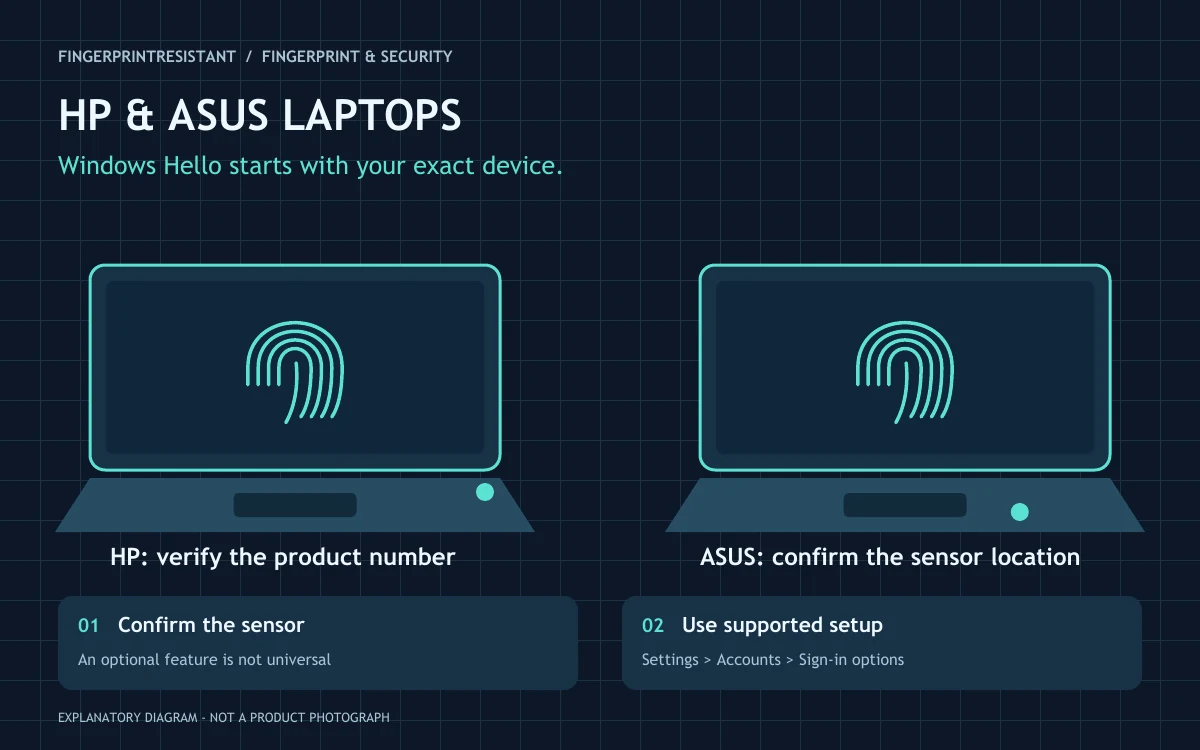
Check the exact configuration first. Not every HP Pavilion or ASUS laptop has a fingerprint sensor. If yours does, Windows Hello setup normally starts in Settings → Accounts → Sign-in options. Keep your PIN available and use the laptop maker’s support page for any driver changes.
A fingerprint reader is convenient when it works: touch the sensor and carry on. When it fails, the same symptom can hide several different causes. The computer might lack the optional hardware, Windows might not detect the device, or the enrolled print might simply need attention. Here is how to work through those possibilities on HP and ASUS laptops.
Find the sensor before changing settings
Start with your laptop’s full product number and its original specification. “HP Pavilion” and “ASUS Vivobook” describe broad families, not identical machines. The case shape or a promotional photograph from another configuration cannot establish whether your laptop has biometric hardware.
A sensor can be a separate surface near the keyboard or palm rest, or be integrated into a power button. ASUS explicitly notes that some models use the power key. Follow the location shown in the manual for your own device. Do not press a power button repeatedly while testing a touch sensor; the enrolment screen explains the action it expects.
If you are buying a laptop, ask for the exact product code and a specification that explicitly names fingerprint recognition. Windows Hello can also refer to face recognition or a PIN. A listing that says only “Windows Hello” does not necessarily promise a fingerprint reader.
Set up fingerprint recognition in Windows 11
On a compatible personal laptop, open Settings, choose Accounts and then Sign-in options. Select Fingerprint recognition under Windows Hello and follow the setup prompts. You may need to establish or confirm your Windows Hello PIN. The available options and wording can vary with Windows version, hardware and organisational management.
Use the finger you naturally bring to that sensor. During registration, follow the repeated-touch instructions and adjust position as prompted, rather than placing precisely the same small patch every time. If offered, adding another finger gives you a practical alternative when a finger is temporarily difficult to scan. Each authorised person should use their own account.
Microsoft provides the current Windows sign-in options guide. For ASUS-specific illustrations and instructions, use ASUS Windows Hello setup guidance. These explain the supported interface; this article is not a substitute for the prompts shown on your own machine.
If fingerprint recognition is unavailable
First distinguish an unavailable option from a rejected scan. If Windows cannot find a compatible reader, repeatedly re-registering your finger will not address the underlying detection problem. Record the exact message and check the device specification again.
| Observation | Useful next check | What it does not prove |
|---|---|---|
| No reader in the specification | Confirm the full product code and configuration. | That a driver can add missing hardware. |
| Reader fitted, but option unavailable | Check Windows detection, manufacturer guidance and device management. | That the sensor is necessarily damaged. |
| Only one finger fails | Cleanliness, positioning and that finger’s enrolment. | That all biometric hardware has failed. |
| Problem began after an update | Record the date, Windows version and driver information. | That removing all updates is the right remedy. |
HP Pavilion: use the product number, not a family-wide download
For a search such as “fingerprint sensor HP Pavilion”, the decisive detail is the precise product number. Find the corresponding HP support page and select the installed operating system. A driver supplied for a similarly named Pavilion can still be inappropriate for your hardware.
HP publishes fingerprint reader troubleshooting guidance labelled for Windows 10. Use it with that limitation in mind: hardware checks can help frame the investigation, while current Windows 11 menu instructions should come from Microsoft and the support material for your product. Do not treat an old screenshot or operating-system label as a recommendation to downgrade.
ASUS: confirm the sensor and follow its troubleshooting sequence
On ASUS laptops, confirm the hardware location and that Windows Hello was set up for the correct account. If recognition is unreliable, carefully clean the scanner according to the device guidance and retry with a clean, dry finger. Avoid abrasive cleaners or applying liquid directly to the sensor.
The official ASUS fingerprint troubleshooting page discusses software and driver checks, with instructions separated by Windows version. If a driver reinstall is needed, obtain the appropriate package from ASUS for the exact model and follow its sequence. Do not replace it with a generic package simply because the device supplier name looks familiar.
If the reader works only sometimes
Write down a repeatable pattern. Does it fail after sleep, only with one finger, or after the laptop has been used outdoors? A clean, controlled test is more informative than trying ten changes in one sitting. Keep your normal sign-in available so troubleshooting does not become an account-access problem.
Where supported, remove and recreate the affected fingerprint registration after confirming the PIN works. If multiple fingers fail consistently with the correct driver, move on to manufacturer support rather than endlessly repeating enrolment. Microsoft’s Windows Hello troubleshooting advice covers recognition errors and unavailable features.
Keep convenience separate from recovery
A fingerprint is an additional sign-in method, not a reason to forget your recovery arrangements. Keep account recovery information current, do not share a PIN, and use the normal Windows lock when stepping away. A work or school laptop may deliberately restrict biometric setup; its IT team should handle those policy questions.
Do not disable security software, change protected folder permissions or clear security hardware as a casual workaround. If a manufacturer’s advanced procedure appears relevant, understand its scope and involve support where needed. Windows 10 has reached the end of standard support, so check the current support status of older machines separately from the fingerprint issue.
Before buying an external reader
Check that it explicitly supports Windows Hello on your Windows version and hardware platform. Consider how it connects, whether it is likely to be knocked in a laptop bag, who supplies updates and whether your organisation permits it. An inexpensive scanner without clear support information can create another compatibility problem.
Quick answers
Does every ASUS laptop have a fingerprint scanner?
No. Verify the exact model and configuration. A laptop may support another Windows Hello method without a fingerprint sensor.
Why does my HP ask for a PIN?
The PIN is part of Windows Hello and can be required in particular sign-in situations. A PIN request alone does not prove that the sensor has failed; investigate persistent detection or recognition problems separately.
Sources and editorial notes
Written from the official guidance linked below. This is an independent explanation, not a hands-on product test. Interfaces, compatibility and support options can change; use the instructions for your exact product and region. Reviewed November 2026.