


Fingerprint & Security · Practical guide
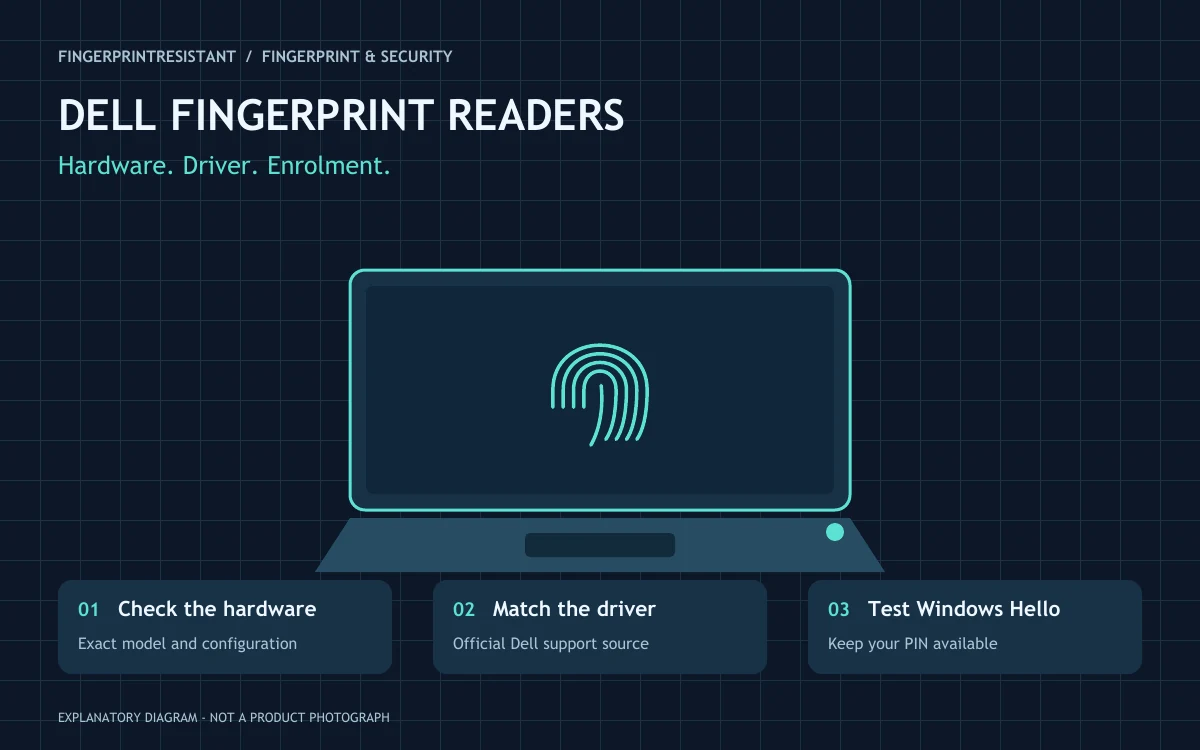
Start with the hardware, not a random driver. Confirm that your Dell configuration includes a fingerprint reader, sign in with your existing PIN, then use Dell’s support page for the exact Service Tag and operating system. A missing sensor, an unsuitable driver and a failed fingerprint enrolment are different problems.
Searches such as “Goodix fingerprint Dell” and “XPS 13 7390 fingerprint reader” often lead to the same frustration: the laptop works, but fingerprint sign-in does not. The most useful approach is to identify which part of the process is failing before changing software. This guide covers sensible checks for owners, without promising that one driver package fixes every Dell laptop.
Does your Dell actually include a fingerprint reader?
A model name does not tell the whole configuration story. Dell lists the fingerprint reader as optional in the XPS 13 7390 setup guide and the Inspiron 5593 specifications. A normal-looking power button is not proof that the biometric hardware is present.
Check the original order specification or identify the laptop on Dell Support using its Service Tag. Keep that identifier private when posting screenshots publicly. For “Dell Inspiron 15 5000 fingerprint reader” searches, find the precise model number too: 5000 is a family name, not a single interchangeable hardware configuration.
| What you have | What to verify |
|---|---|
| XPS 13 7390 | Whether this configuration has the optional reader; distinguish the laptop from a different 2-in-1 model. |
| Inspiron 5593 | Optional hardware and the driver offered for the actual Service Tag. |
| Inspiron 15 5000 | The full model number and operating system before choosing a download. |
| A device called Goodix | The exact device and compatible Dell driver, rather than the supplier name alone. |
Separate the three common failure points
1. The fingerprint option is missing
Open Windows Settings, then Accounts and Sign-in options. If fingerprint recognition is unavailable, record the message rather than assuming your finger is the problem. In Device Manager, look for the biometric device and any warning indicator. A missing entry is a clue to investigate configuration, detection or driver support; it does not by itself prove that the reader is broken.
2. The device appears, but enrolment fails
Use your PIN to enter the correct Windows account, gently clean the sensor as the manufacturer recommends, and make sure your finger is clean and dry. Try enrolment again without rushing the repeated touches. If several people use the laptop, check that you are configuring the intended account.
3. Enrolment completes, but sign-in is unreliable
Note whether the problem happens after sleep, after a restart or every time. That small observation is useful evidence. A normal PIN request in a particular situation is different from a reader that never detects a touch. Microsoft’s Windows Hello troubleshooting guide helps distinguish recognition errors from other sign-in problems.
What the Goodix driver name means
Goodix is a hardware supplier name you may see in Dell documentation or Device Manager. It is not a universal download instruction. Dell has documented a specific issue in older Goodix drivers on selected Inspiron and Vostro models, including the Inspiron 5593: setup could appear successful while fingerprint sign-in remained unavailable. That support article is a useful lead for affected machines, not evidence that every current problem has the same cause.
Read Dell’s affected-model guidance and compare it with the machine in front of you. An XPS 13 and an Inspiron with similar numbers are not automatically covered by the same fix. Avoid copying a version number from a forum without checking the supported model and operating system.
Use a controlled update process
- Keep a working sign-in method. Confirm you can use your current PIN before changing biometric settings.
- Identify the exact machine. Open Dell Support yourself and match the Service Tag, model and installed Windows version.
- Review the relevant downloads. Use the supported fingerprint driver and any prerequisites stated by Dell. Do not install every package containing the word Goodix.
- Change one thing at a time. Follow the installer instructions, restart when requested and retest. Keep a short note of what changed.
- Re-enrol if appropriate. If the hardware is detected and the driver is correct, remove the old fingerprint registration through Sign-in options and register it again. Make sure the alternative sign-in still works first.
Dell’s fingerprint driver and enrolment instructions are the starting point for the current supported process. Firmware and BIOS updates deserve particular care: follow Dell’s model-specific instructions and prepare any required recovery information. They are not a routine first guess for every failed fingerprint scan.
What to avoid when a reader stops working
Do not clear the TPM, disable security protections or reinstall Windows merely because a search result suggests it. These are substantial changes with consequences beyond the fingerprint reader. On a work or school laptop, sign-in may be managed by the organisation; ask its IT team before altering drivers or policy.
Older XPS and Inspiron guides may describe Windows 10. Its standard support ended on 14 October 2025. Check your current Windows support status and any applicable extended-update arrangement with Microsoft; restoring fingerprint sign-in does not make an unsupported operating system supported. Likewise, do not assume an older laptop qualifies for a newer Windows release without checking compatibility.
When to contact Dell support
Escalate if the reader is confirmed in the configuration but remains undetected with the supported software, if physical damage is suspected, or if the problem returns consistently after the documented steps. Provide the model, Windows version, exact message and the point at which recognition fails. That is more useful than a long list of unrelated drivers already tried.
Quick answers
Can installing a driver add a fingerprint reader?
No. Software cannot create missing biometric hardware. An external Windows Hello-compatible reader may be an alternative, but check compatibility and organisational policy before buying.
Is every Inspiron 5593 covered by the Goodix issue?
No. Check whether the optional reader is present, which hardware is fitted and whether Dell’s documented symptoms and supported remedy match your machine.
Sources and editorial notes
Written from the official guidance linked below. This is an independent explanation, not a hands-on product test. Interfaces, compatibility and support options can change; use the instructions for your exact product and region. Reviewed November 2026.